ip
Denify User Guide
Denify is a simple task management application that helps you stay organized by managing your tasks efficiently.
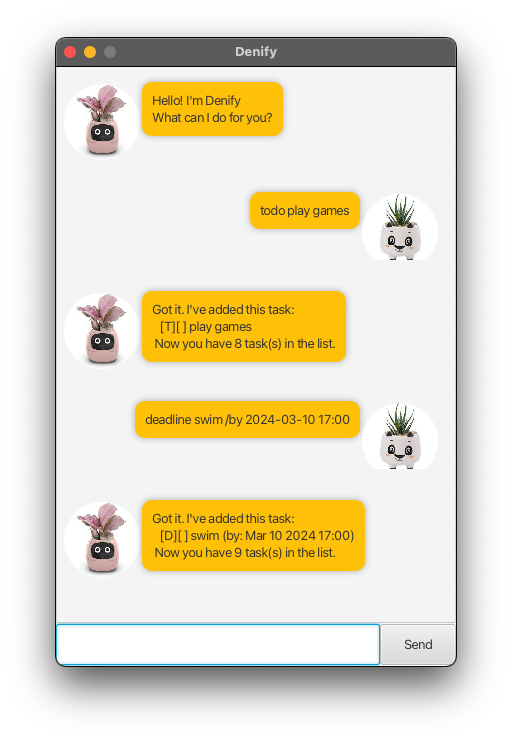
Adding Tasks
To add a task, you can use the todo keyword followed by the task description into the input field and press the “Send” button.
Example: todo Read book
Got it. I've added this task:
 [T][ ] Read book
Now you have 1 task(s) in the list.
Adding Deadlines
To add a deadline task, you can use the deadline keyword followed by the task description and the deadline datetime with /by in the format yyyy-mm-dd HH:mm into the input field. Then, press the “Send” button.
Example: deadline Finish report /by 2024-12-31 23:59
Got it. I've added this task:
 [D][ ] Finish report (by: Dec 31 2024 23:59)
Now you have 2 task(s) in the list.
Adding Events
To add an event task, you can use the event keyword followed by the event description, the start datetime with /from, and the end datetime with /to in the format yyyy-mm-dd HH:mm into the input field. Then, press the “Send” button.
Example: event Team meeting /from 2024-12-31 14:00 /to 2024-12-31 15:00
Got it. I've added this task:
 [E][ ] Team meeting (from: Dec 31 2024 14:00 to: Dec 31 2024 15:00)
Now you have 3 task(s) in the list.
Marking Tasks as Done
To mark a task as done, you can simply type the task number preceded by the mark keyword into the input field and press the “Send” button.
Example: mark 1
Nice! I've marked this task as done:
 [T][X] Read book
Unmarking Tasks as Undone
To unmark a task as undone, you can simply type the task number preceded by the unmark keyword into the input field and press the “Send” button.
Example: unmark 1
OK, I've marked this task as not done yet:
 [T][ ] Read book
Viewing the Task List
To view the list of tasks, simply type list into the input field and press the “Send” button.
Example: list
Here are the tasks in your list:
 1.[T][ ] Read book
 2.[D][ ] Finish report (by: Dec 31 2024 23:59)
 3.[E][ ] Team meeting (from: Dec 31 2024 14:00 to: Dec 31 2024 15:00)
Deleting Tasks
To delete a task, you can simply type the task number preceded by the delete keyword into the input field and press the “Send” button.
Example: delete 1
Noted. I've removed this task:
 [T][] Read book
Now you have 2 task(s) in the list.
Finding Tasks
To find tasks containing a specific keyword, type find followed by the keyword into the input field and press the “Send” button.
Example: find meeting
Here are the matching tasks in your list:
 1.[E][ ] Team meeting (from: Dec 31 2024 14:00 to: Dec 31 2024 15:00)
Exiting Denify
To exit Denify, simply type bye into the input field and press the “Send” button.
Example: bye
Bye. Hope to see you again soon!